A Microsoft Excel data connection allows you to connect to an Excel file and create the associated tables and views in an EBS database.
 Add a new Microsoft Excel data connection
To add a new Microsoft Excel data connection:
-
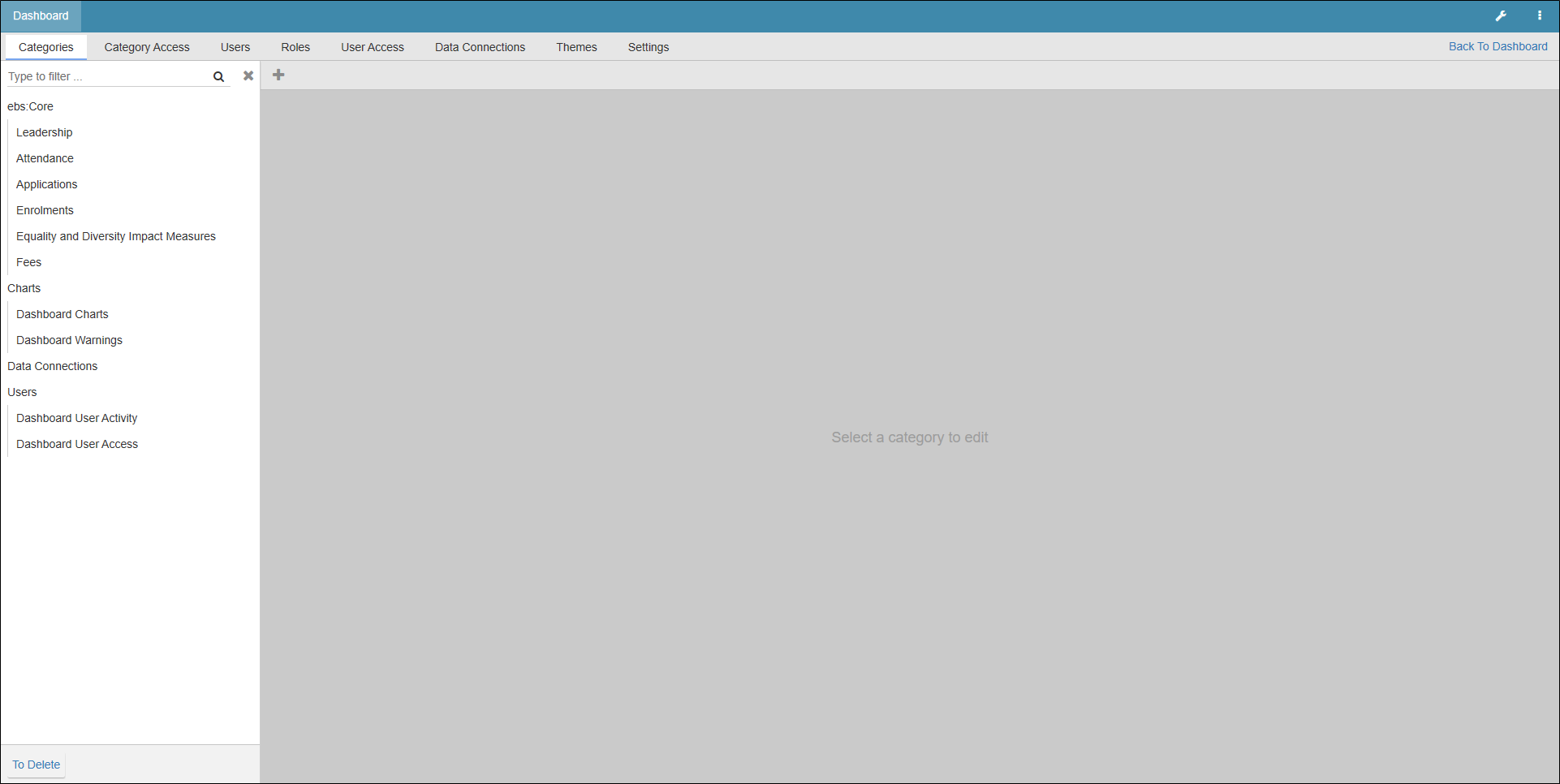
Select the Dashboard Configuration button on the dashboard ribbon.

The Dashboard screen is displayed.
-
Select the Data Connections tab.

-
Select the Add button to add a new connection.

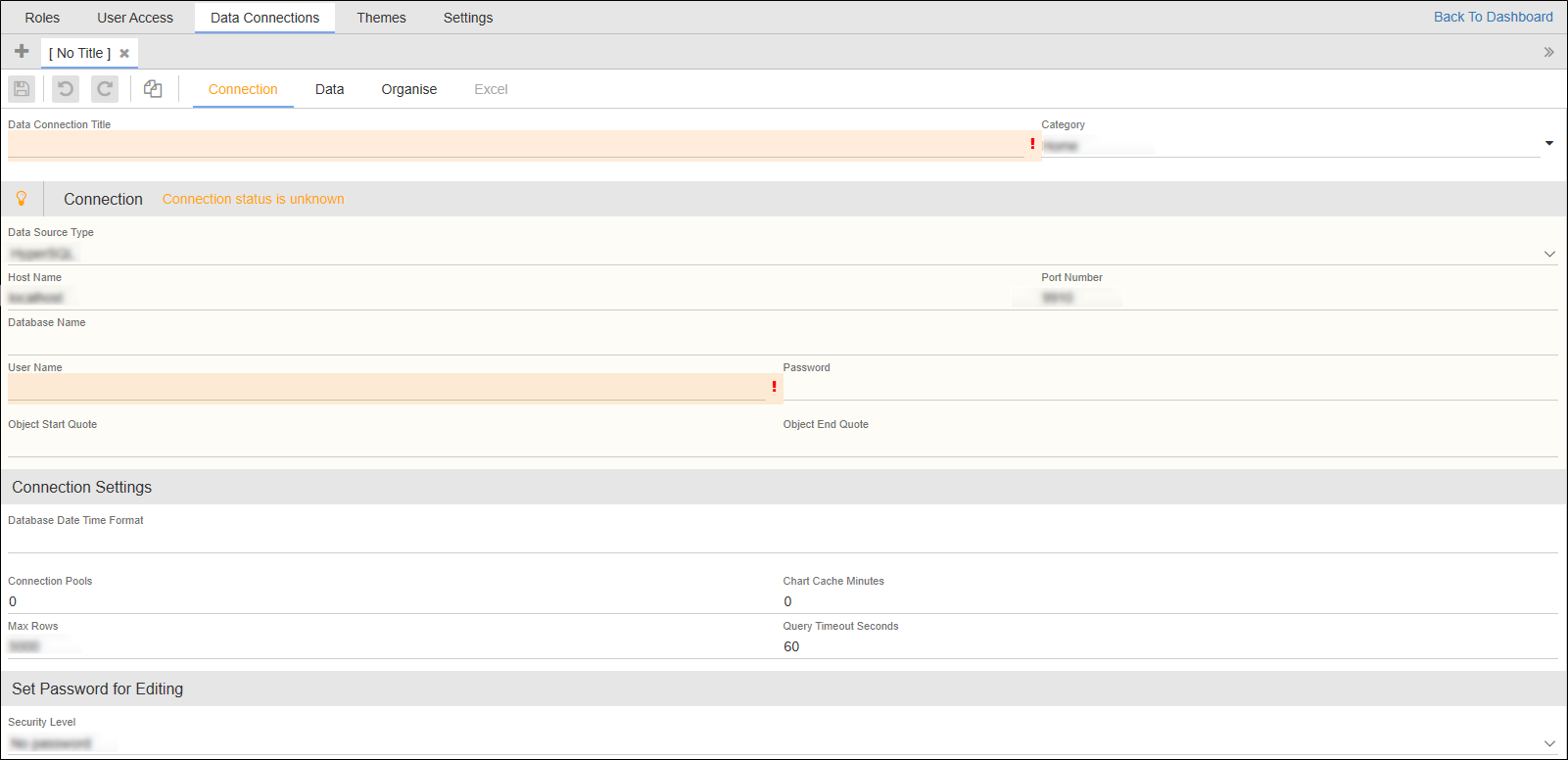
The new connection screen is displayed.
-
Enter the relevant details.
The fields on the Connections tab are described in the following table.
| This button | Does this... |
|---|---|
| Data Connection Title | The name assigned to the data connection. This field is mandatory. |
| Category | The data connection category. Choose from the drop-down list. |
| Data Source Type | The data source type. Choose from the drop-down list. |
| Host Name |
The host name. Variable: [[EBSDB_HOSTNAME]] |
| Port Number |
The port number. Variable: [[EBSDB_PORTNUMBER]] |
| Database Name |
The database name. Variable: [[EBSDB_NAME]] |
| Database Instance |
The database instance. Variable: [[EBSDB_INSTANCENAME]] |
| User Name |
The account used to access the database. This field is mandatory. Variable: [[EBSDB_USERNAME]] Important.Elevated permissions are required to create table from a Microsoft Excel data connection in an EBS database.
|
| Password | The password for the account used to access the database. |
| Database Date Time Format |
The date and time format. Variable: [[DEFAULT_DATABASE_DATE_TIME_FORMAT]] |
-
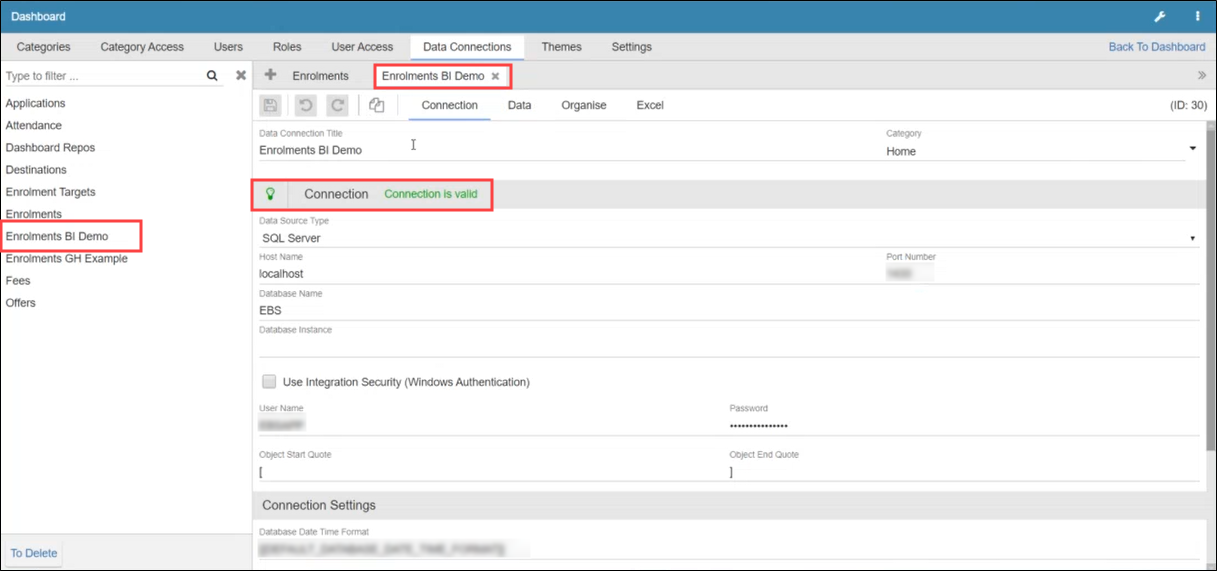
Select Save .

A successful connection is indicated in the Connection field. The connection is added to the sidebar menu and the Excel tab is enabled.
-
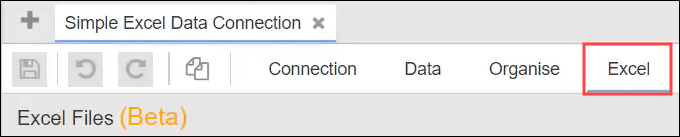
Select the Excel tab.
-
Select the Add button.

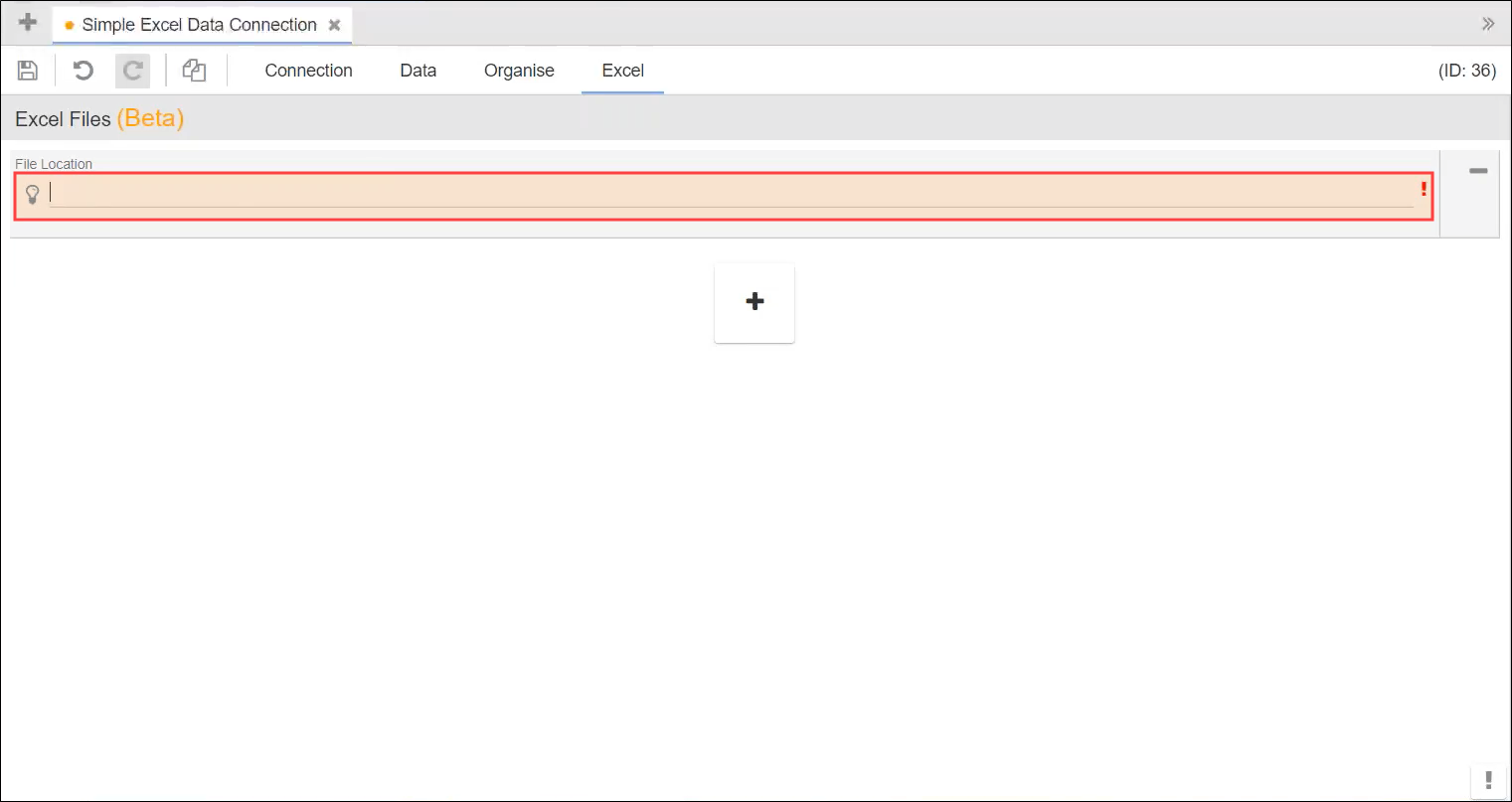
The File Location field is displayed.
-
Enter the location of the file in the File Location field.
Important.You can currently only use .XLSX files. -
Select an area of the screen outside the File location field and then select the Validate Location button.

Sheets contained in the spreadsheet are listed to indicated that validation is successful.

-
Select the relevant sheets.

-
Select Save .

Tables and views can be added to your Excel data connection by selecting from a schema list.
Tables and views can be added to your Excel data connection by selecting from a schema list.
Add tables or views with Select from Schema
To add data to a connection to your Excel data connection with Select from Schema:
-
Open the relevant data connection and select the Data tab.

-
Select the Add Table button.
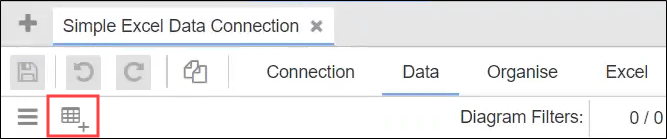
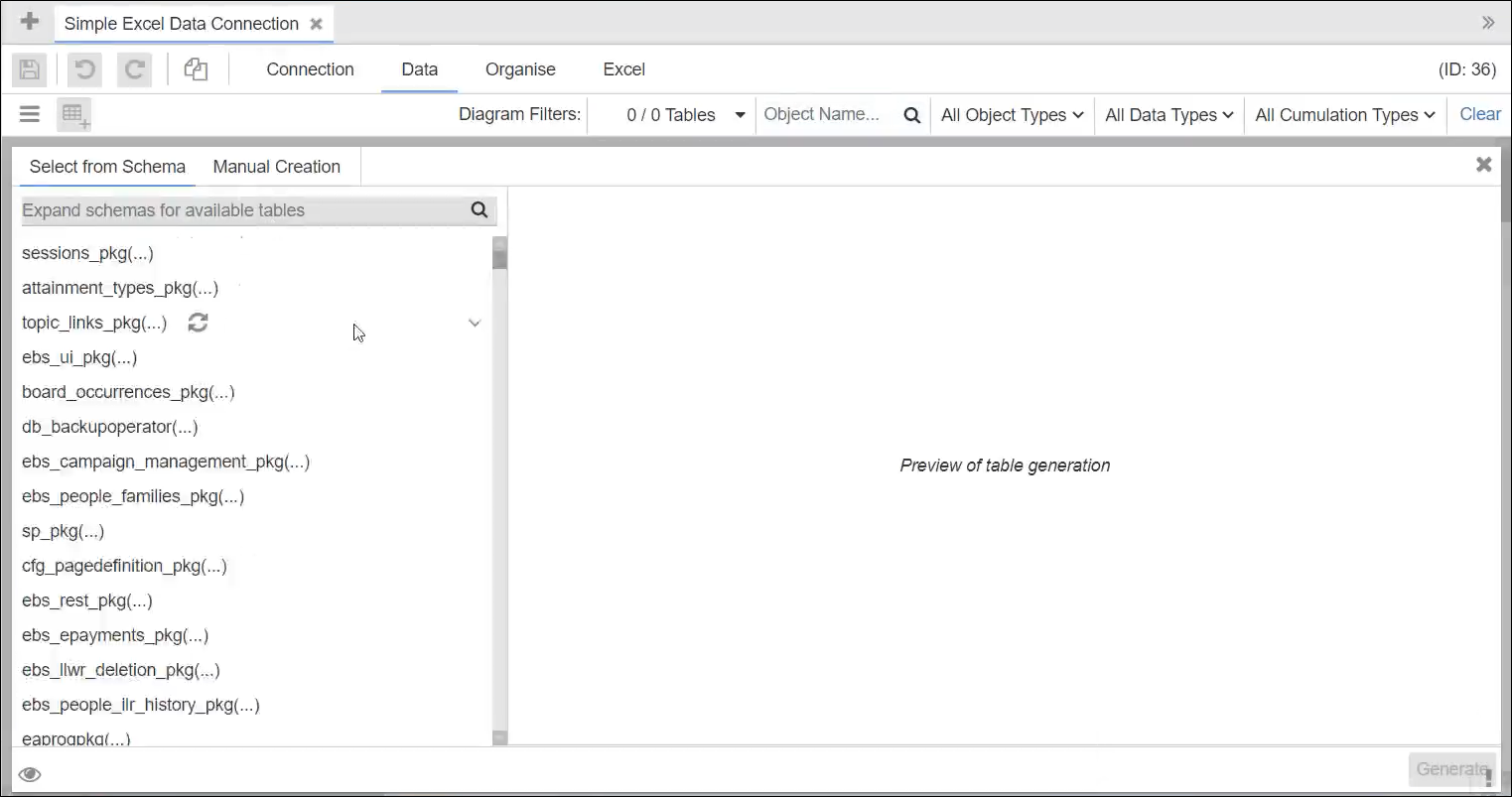
The table generation window is displayed where you can add tables or views.
-
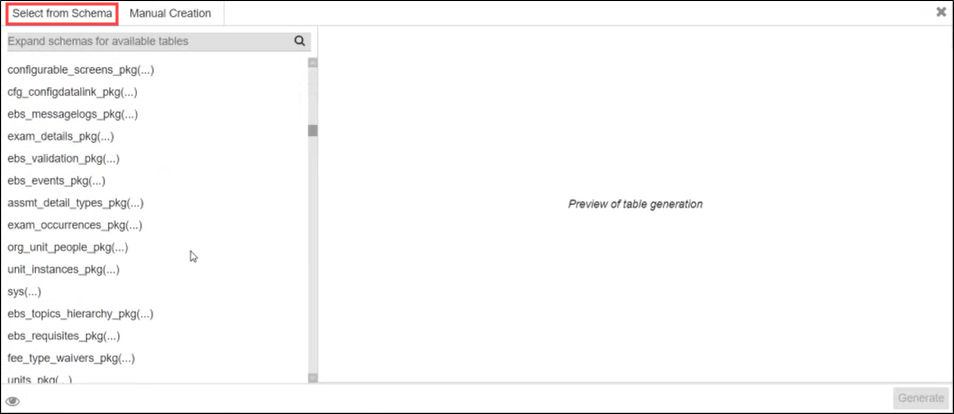
Select the Select from Schema tab.
-
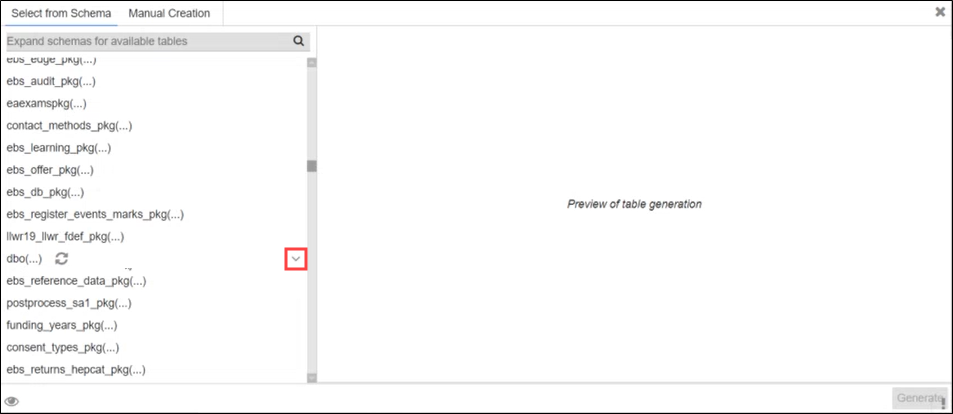
Browse to the dbo table, select the Expand button to reveal the contents.
-
Browse the contents of the table prefixed PI_EXCEL and select the relevant check box to include all columns for a table.
Important.Microsoft Excel tables are prefixed PI_EXCEL.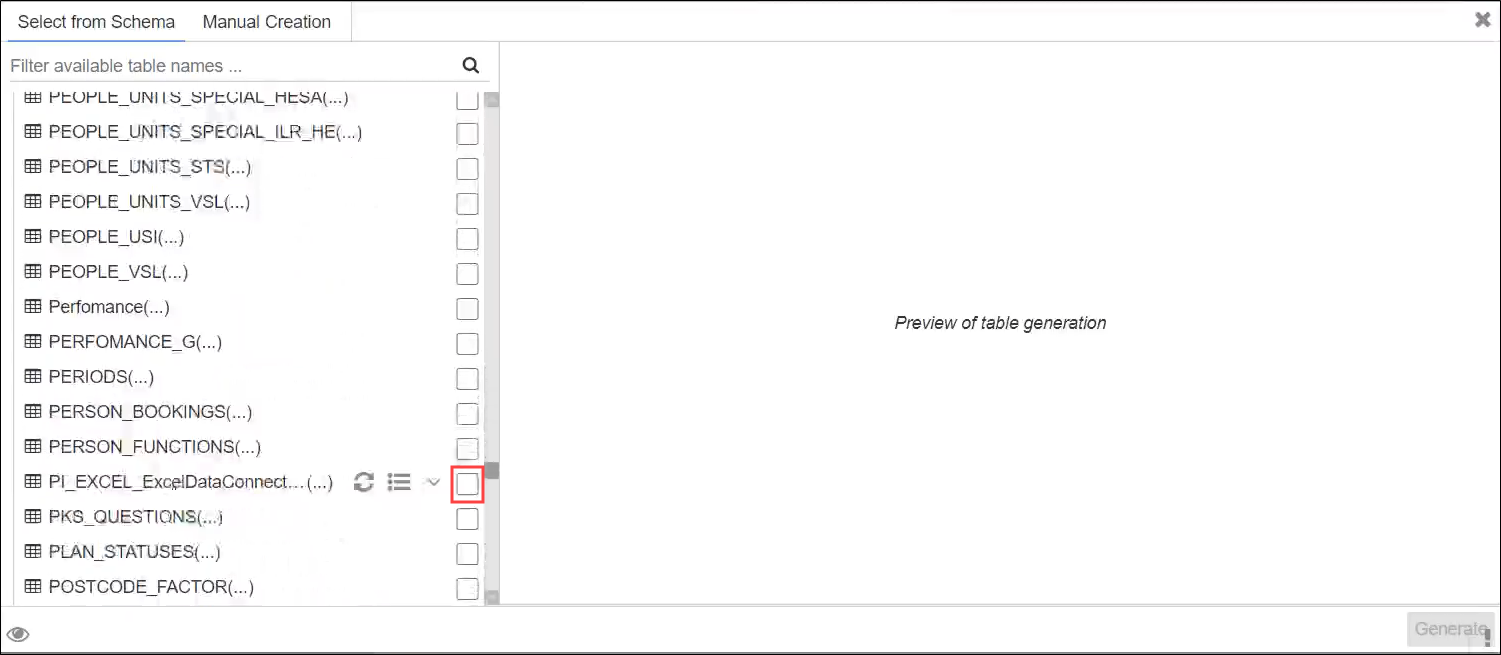
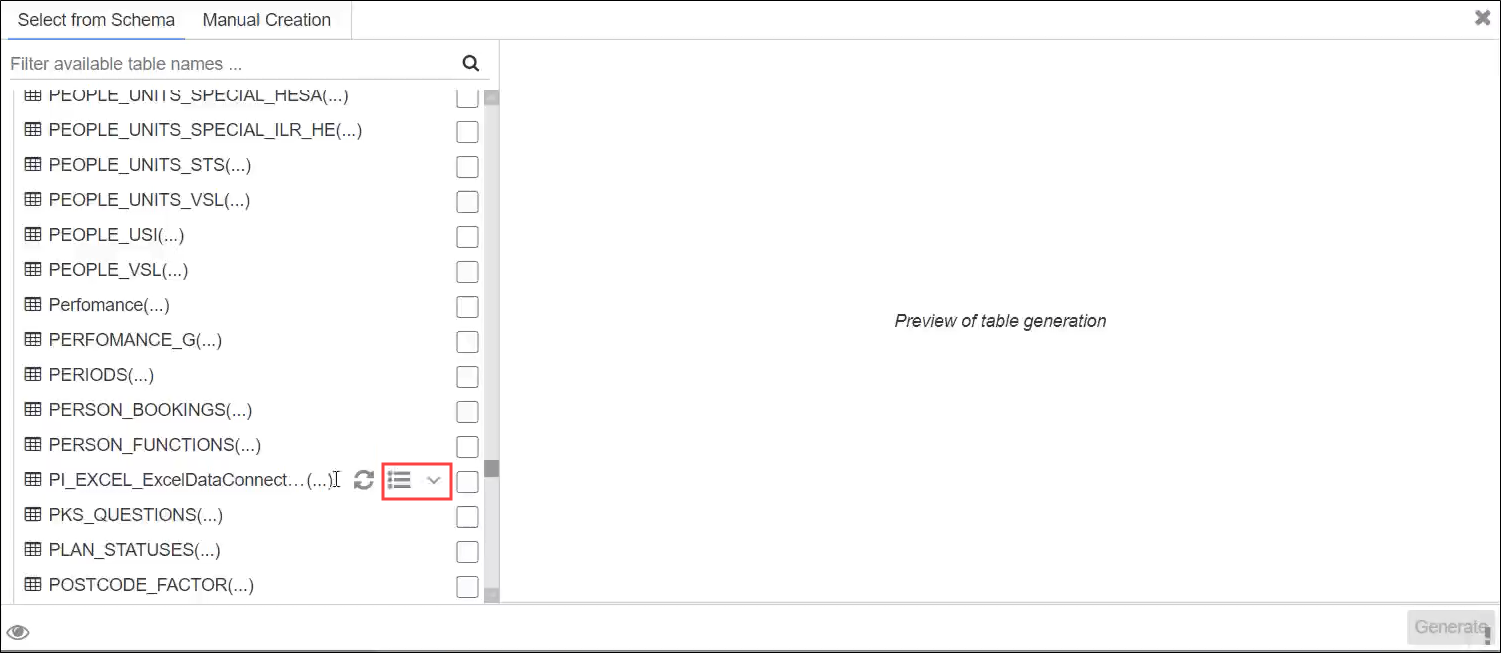
Alternately, select the Select all Columns button to include all columns contained in the relevant table, or select the Expand button to display a columns list.
-
Select the columns that you want to include.
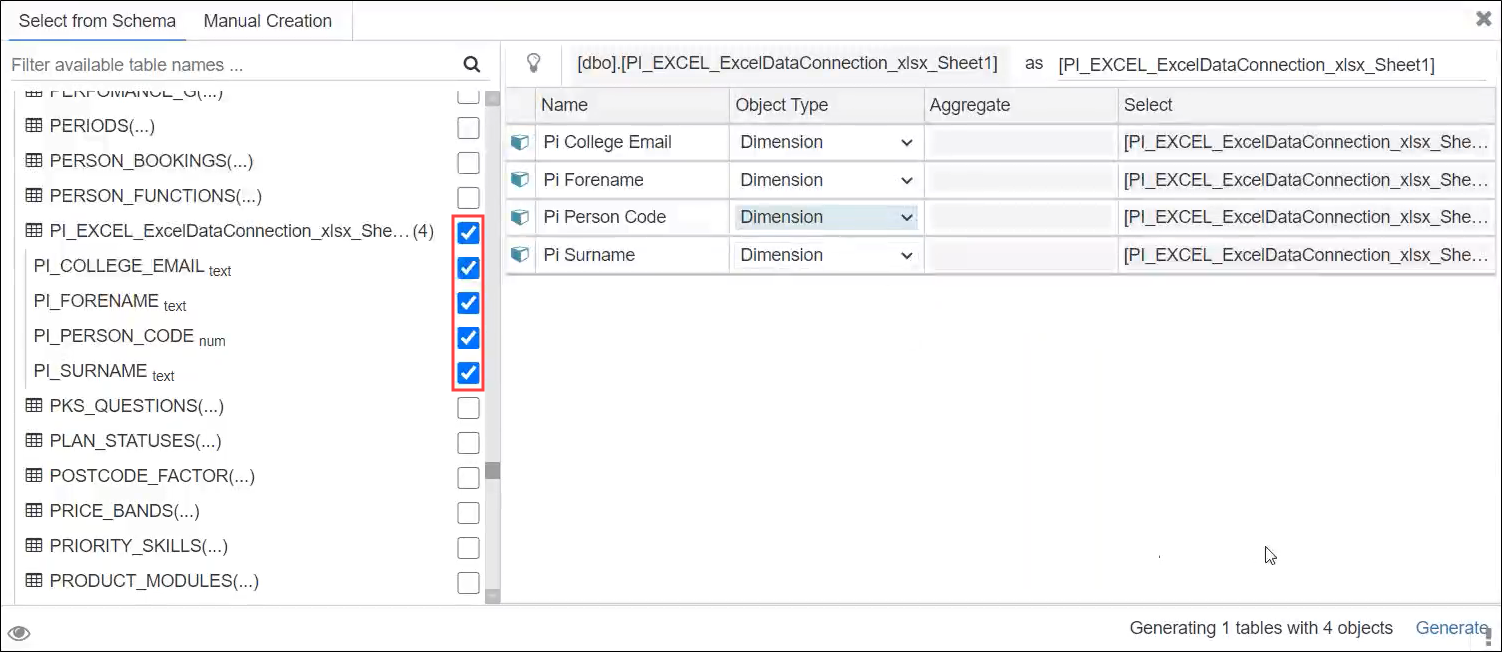 Important.You may have to alter the contents of the Name column if the object has already been included in another item in the data connection (for example: change 'Field name' to 'Fieldname').
-
Select the Generate button in the bottom right corner.

The tables are added to the connection.
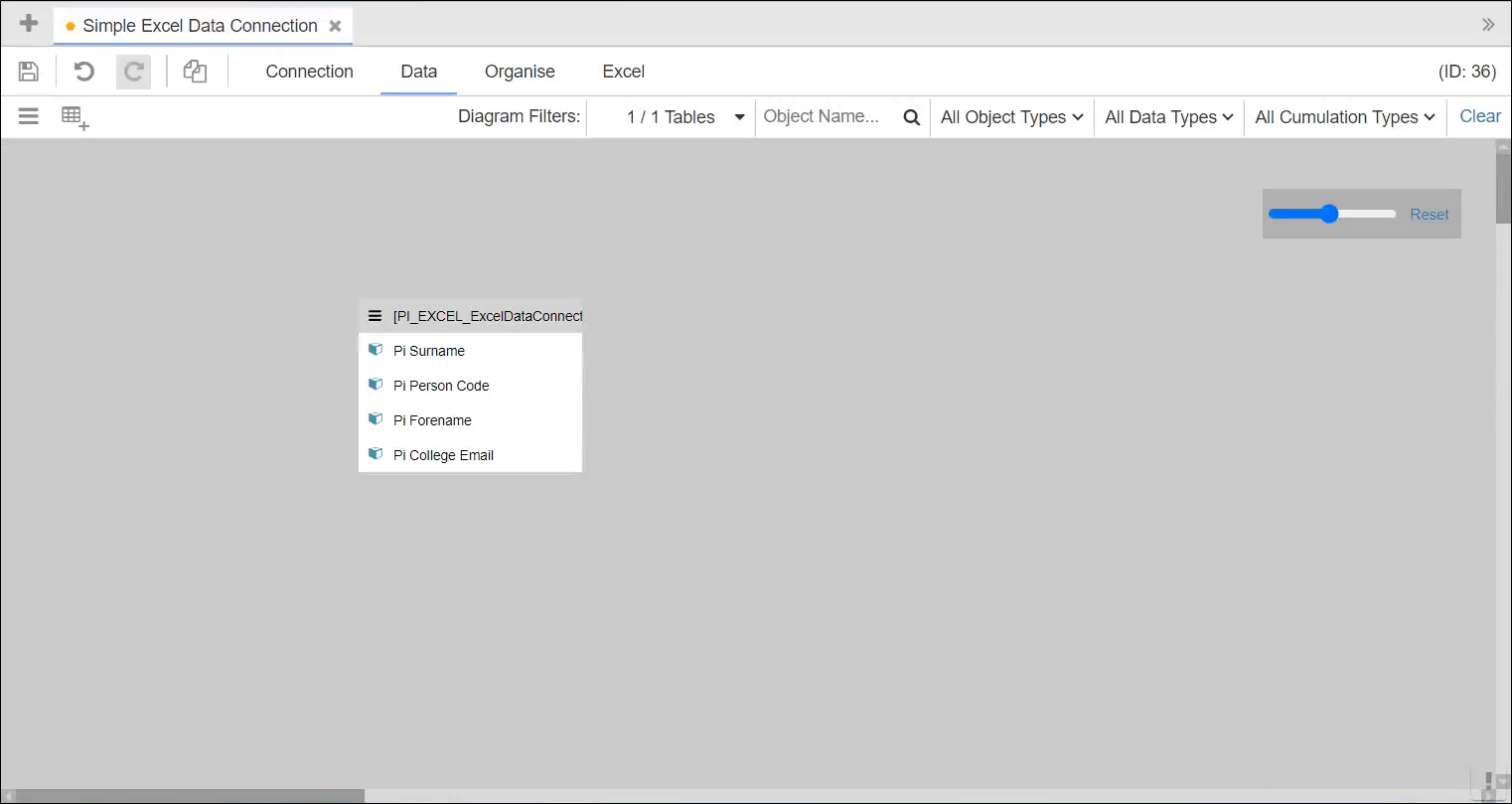
- Select Save .